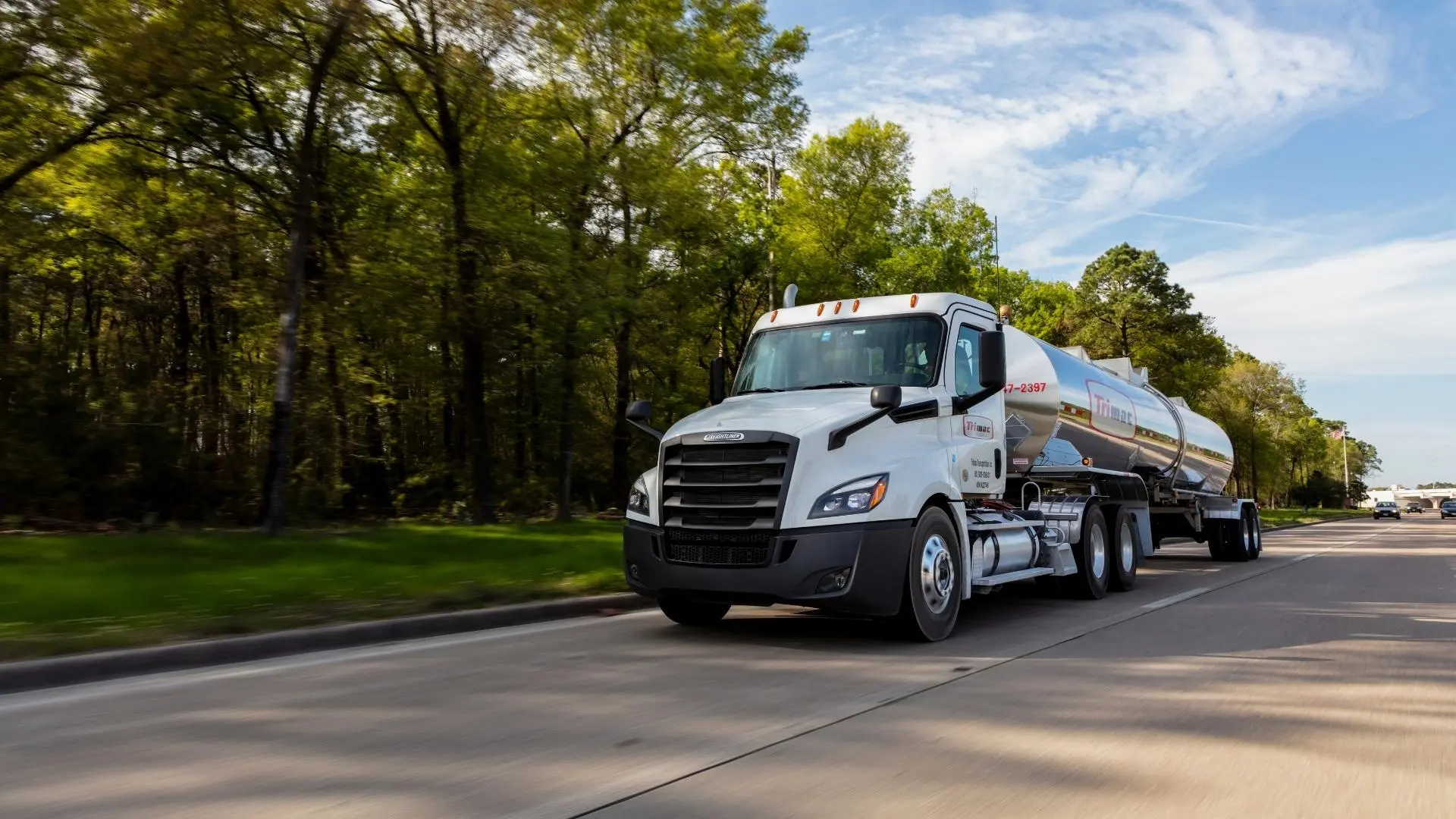
Service With Safety
We’ve been setting the standard for reliable bulk transportation since 1945. Join our industry-leading team today.
We’ve been setting the standard for reliable bulk transportation since 1945. Join our industry-leading team today.
Founded in 1945, Trimac Transportation is a leading provider of bulk transportation services across North America. With a focus on safety, service, and sustainability, Trimac operates in the chemical, energy, mining, food-grade, and specialized hauling sectors. Headquartered in Calgary, Alberta, Canada, Trimac employs more than 4,000 team members and independent contractors across a network of over 140 branches. Trimac’s purpose is to safely deliver products that improve people’s lives.


Serving Bulk Since
Deliveries per Day
Miles Driven per Year
NTTC’s Safest Tank Truck Carrier in North America
We take pride in transporting the goods North American families need every day.
About UsWe’re experts in safely getting things where they need to go. From dry bulk to specialized commodities, we have experience moving everything under the sun. We’re transportation specialists with a reputation for trust and getting the job done right.
Learn More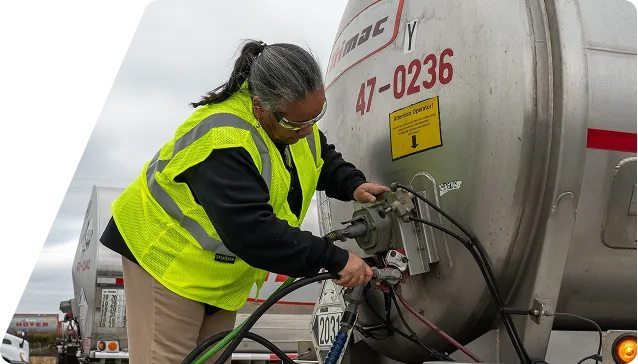
We deliver solutions to our customers. From maintenance, tank cleaning, transloading to freight brokerage—we become an extension of your business and needs.
Learn More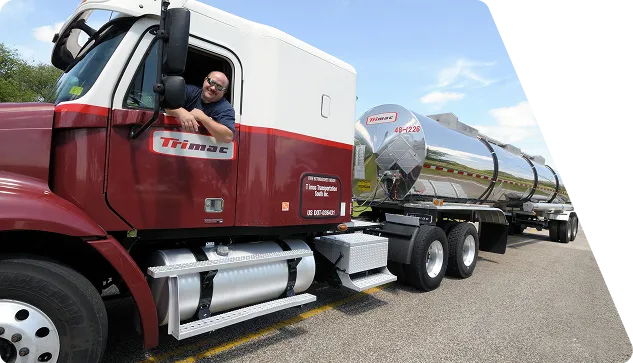
“I have been with Trimac for more than 10 years and overall, it has been an excellent experience. I have a wonderful boss and work has been flexible with my family life. Trimac has been a fantastic company!”

I like the fact that Trimac is willing to give people a chance. They don’t worry you and truly are a caring business. I appreciate Trimac’s safety culture. When a mistake is made, they are forgiving and help you learn from it.



We’ve got your back. With exceptional service coverage across North America, we’ll get you taken care of and back on the road in no time.
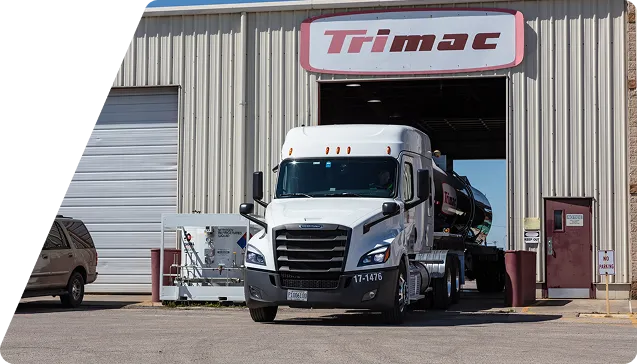

This is the first step toward a fulfilling career in transportation. Whether you want to drive with us or help our award-winning business grow, there’s a place for you here.
Over the years, we’ve come to understand our customers’ needs. Through strategic partnerships and acquisitions, we’ve grown to support them better at every turn.
We have a tight network of maintenance and wash shops across North America, so your fleet is always running smooth and looking its best.
Let us provide you with expert transloading and freight brokerage services to meet the needs of your business.
Become an independent contractor today with our inventory of used tractors and trailers available for purchase. Always high-quality, certified, and road-ready.